A technical manual for setting up generic Android boxes, NVIDIA Shield, and Formuler hardware for fast, buffer-free United Kingdom IPTV playback.
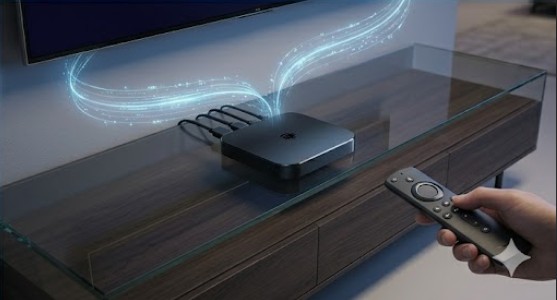
Dedicated Android television systems—such as the NVIDIA Shield Pro, Formuler Z-Series boxes, and generic Android TV layouts—provide the most powerful processing available for home streaming. These devices feature robust hardware decoding chips, which allow them to run massive United Kingdom IPTV channel databases smoothly and efficiently.
To fully utilize this premium hardware without micro-stutters or stream freezing, you need to configure your network paths and application settings correctly. This expert manual outlines the precise setup adjustments needed to run BritainIPTV streams at peak performance.
Step 1: Choose Your Software Player Environment
Depending on your specific Android device tier, select and install the application environment that best matches your hardware:
- For NVIDIA Shield & Generic Android Boxes: Open the Google Play Store and install TiviMate or XCipTV. TiviMate is highly recommended for its advanced, cable-style navigation menu.
- For Formuler Units: Do not download external tools. Use the native, built-in MyTVOnline (MYTVOnline 2 or 3) app environment designed explicitly for the device hardware.
Step 2: Connect Your Device to Our Streaming Clusters
- Launch your chosen player application and select the option to Add Playlist or Configure Server Node.
- Choose Xtream Codes Parameters to enable fast, automated list updating features.
- Input your personalized account credentials from your registration dashboard:
- Server Name: BritainIPTV Core
- Server URL Path: (Your high-speed access link)
- Username & Password: (Your secure authentication tokens)
Step 3: Apply Advanced Playback Settings (Anti-Buffer)
To protect your streams from local network fluctuations and ISP throttling blocks, apply these manual optimizations inside your app’s settings menu:
1. Adjust Buffer Memory Storage Size
Navigate to the Playback settings and change the buffer limit from “Normal/None” to Large or 10 Seconds. This builds a strong local cache to keep streams playing smoothly through minor internet drops.
2. Enable Hardware Accelerated Video Decoding
Ensure your primary video decoder is explicitly set to Hardware (HW) rather than Software (SW). This shifts video processing tasks directly onto your box’s graphic card for smooth 4K/8K frame rates.
3. Automate EPG Update Schedules
Set the electronic program guide interval parameter to Update on App Launch or every 12 Hours to keep your interactive TV guide completely accurate.
Step 4: Save and Initialize the System Link
Click Connect or Apply. Your Android box will instantly lock onto our premium delivery pipelines, organizing over 25,000 international streams and 160,000+ VOD options into a fast, responsive, high-performance entertainment grid.