A step-by-step setup guide for running high-resolution United Kingdom IPTV subscription streams directly on Samsung, LG, and Sony Smart TVs without external hardware.
Modern televisions running native operating systems, such as Samsung Tizen, LG webOS, or Sony Android TV, are fully capable of handling 4K and 8K streaming feeds directly. By connecting our advanced United Kingdom IPTV server arrays directly to your television’s native app layout, you eliminate the need for external media sticks or confusing wiring configurations.
This technical guide shows you how to connect your television’s built-in media engine directly to BritainIPTV’s high-speed data stream channels for a premium viewing experience.
Step 1: Install a Premium Media Shell Application
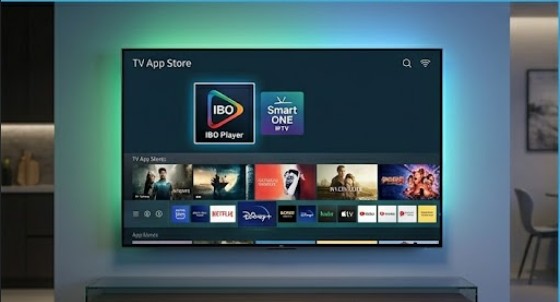
Turn on your smart display and open the native app store repository (Samsung Smart Hub, LG Content Store, or Google Play). Search for and install one of these highly optimized, verified applications:
IBO Player (Highly Recommended)
Features fast grid rendering speeds and a clean, responsive layout.
Smart ONE IPTV
An excellent alternative player featuring clean, multi-language catalog support.
Step 2: Locate Your Hardware MAC Identifier Address
Launch the player app you installed on your TV. The initialization screen will display your hardware identification keys, which connect your device to our servers. Write down these two strings exactly as shown:
- Your unique MAC Address (Format:
XX:XX:XX:XX:XX:XX) - Your unique Device Key / App Code
Step 3: Route Your M3U Playlist Link from a Browser
Instead of using a clunky TV remote control to type long strings of code, manage your setup easily using a smartphone or computer web browser:
- Navigate to the official device management portal of your chosen app (e.g.,
iboplayer.com/manage). - Input your television’s MAC Address and Device Key into the login fields.
- Click the option to add an M3U Playlist URL or Xtream Codes API Connection.
- Paste your custom BritainIPTV high-availability stream URL directly into the playlist input field, then click Save Changes.
Step 4: Reload the Screen Grid
Return to your Smart TV interface layout, go to the application’s configuration menu, and select Reload Playlist or restart the application completely. The system will sync with your custom dashboard instantly, serving thousands of high-definition global television feeds directly to your screen.